How to Save and Play Signal Voice Notes on Your Computer
Signal is popular because it keeps your chats private. That includes voice notes. But privacy also means Signal doesn’t make it obvious how to move a voice message to your computer.
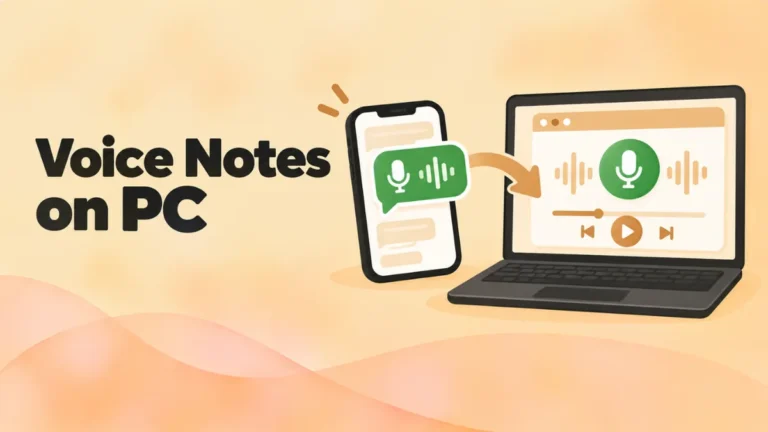
This guide shows you how to save Signal voice notes on Android, iPhone and Signal Desktop. You’ll also learn which file formats to expect. Then you’ll see how to play or convert the file on Windows, Mac and Linux.
The quick answer
- Signal Desktop: open the chat settings, go to All media, find the voice message and click the save icon.
- Android: open the chat, tap the contact name, go to Shared media, then save the file.
- iPhone: open All Media for the chat, pick the voice message and choose Save Audio, or share it to Files.
- Play it: Use your computer’s built-in player for .m4a, .aac or .mp3 files. For .ogg or .opus files, use our free online OGG player or VLC.
What format are Signal voice notes?
This is where Signal differs from WhatsApp and Telegram. WhatsApp and Telegram both use Opus audio in an Ogg file. Signal’s format depends on the device and app version, and it has changed over the years.
When you save a Signal voice note, check the file extension. You may see:
| Extension | What it is | Plays on |
|---|---|---|
| .m4a or .aac | AAC audio | Almost everything, including iPhone and Windows |
| .mp3 | MP3 audio | Almost everything |
| .ogg or .opus | Opus audio in Ogg | Chrome, Firefox, VLC, Android, newer Safari |
The good news: AAC and MP3 files play on almost any device with no extra software. If your file is .ogg or .opus, follow the OGG steps below.
To see the extension on Windows, open File Explorer, click View > Show and tick File name extensions. On a Mac, select the file and press Cmd + I to see its full name.
How to save Signal voice notes from Signal Desktop
Signal Desktop runs on Windows, Mac and Linux. It syncs with your phone, so recent voice messages show up there too.
- Open Signal Desktop and go to the chat.
- Click the chat’s name at the top to open the chat settings.
- Choose All media (or View recent media).
- Find the voice message or audio file.
- Click the save icon. Pick a name and a folder, then click Save.
In some versions, you can also right-click a voice message in the chat and choose Download.
Note: Signal Desktop only shows messages sent after you linked it. Older voice notes stay on your phone. To get those, save them on your phone first.
How to save Signal voice notes on Android
From the chat
- Open the chat in Signal.
- Tap the contact or group name at the top.
- Tap Shared media.
- Choose the audio or files tab and find the voice note.
- Tap the three dots and choose Save.
The file goes to your phone’s storage, usually in the Music or Download folder.
From storage settings
Signal also lets you see every saved attachment in one place:
- Tap your profile picture.
- Go to Data and storage > Manage storage > Review storage.
- Select the items you want and save them.
This is handy when you want many voice notes at once.
How to save Signal voice notes on iPhone
- Open the chat and tap the contact name.
- Tap All Media.
- Select the voice message.
- Tap the Share icon.
- Choose Save Audio, Save to Files or AirDrop.
Tip: In some versions, you can also tap and hold a voice message and choose Save Items.
How to move the file to your computer
Once the file is on your phone, you have several options:
- AirDrop from iPhone to Mac. It’s the fastest way.
- USB cable from Android to a PC. Choose File transfer on the phone, then copy the file in File Explorer.
- Email it to yourself. Fine for small voice notes.
- Cloud storage like Google Drive or iCloud Drive.
- Signal Desktop: send the voice note to your own Note to Self chat, then save it on your computer.
Keep privacy in mind. Voice notes can hold personal details. A USB cable or AirDrop keeps the file off third-party servers.
How to play a Signal voice note on a computer
If it’s .m4a, .aac or .mp3
These are standard formats. Just double-click the file:
- Windows: opens in Media Player.
- Mac: opens in QuickTime Player or Music.
- Linux: opens in your default music player.
If it’s .ogg or .opus
These need a player that supports Opus:
- Go to openoggfile.com in Chrome, Edge or Firefox.
- Drag the file onto the page and press play.
Or install VLC, which plays every format on this page. See how to play OGG files in VLC for help.
How to convert a Signal voice note to MP3
MP3 is the most widely supported format. Convert your voice note if you need to share it or use it in a video.
From .ogg or .opus
- Open the file in the online OGG player.
- Choose 128 kbps, which is plenty for voice.
- Click Download MP3.
The conversion runs in your browser. The file isn’t uploaded anywhere, which fits Signal’s privacy-first spirit.
From .m4a or .aac
These already play almost everywhere, so you may not need to convert them. If you do need MP3, use VLC:
- Open VLC and choose Media > Convert / Save (Windows) or File > Convert / Stream (Mac).
- Add the file.
- Choose Audio – MP3 and save.
Why save Signal voice notes at all?
Most voice notes are throwaway messages. But some are worth keeping:
- Family memories, like a grandparent telling a story or a child’s first words.
- Instructions you’ll need again, such as directions or a recipe.
- Work details that someone explained out loud instead of typing.
- Messages from people you’ve lost. Many people treasure these.
Signal is built to protect messages, not archive them. A phone can break, and disappearing messages can remove things you meant to keep. Saving important voice notes as files is the safest way to hold on to them.
What about Signal backups?
Signal has its own backup options, and they’re worth turning on. On Android, Signal can create encrypted backups of your chats. Signal has also been adding newer backup features across platforms. Look in Signal’s settings for Backups or Chat backups to see what your version offers.
Backups restore your whole Signal history into Signal. They don’t give you loose audio files you can play elsewhere. So for voice notes you want to keep outside the app, save them as files too.
Privacy tips for saved Signal voice notes
You chose Signal for privacy, so keep that going after you save a file:
- Store voice notes in a private folder, not a shared or synced folder others can see.
- Avoid online converters that upload files. Use tools that work locally, like VLC or our in-browser player.
- Watch for disappearing messages. If a chat uses them, the voice note will vanish from Signal after the timer ends. Save it first if you need it, and only with the other person’s okay.
- Delete copies you no longer need.
Troubleshooting
I can’t find the voice note in Signal Desktop
Signal Desktop only has messages from after you linked it. Save older voice notes from your phone instead.
The saved file won’t play
Check the extension. If it’s .ogg or .opus, use the online player or VLC. If it’s .m4a and still won’t play, the file may be incomplete. Save it again.
The voice note is gone from the chat
The chat may use disappearing messages, or someone deleted it. Once it’s gone from Signal, you can’t get it back from the app.
The save option is missing
Update Signal to the latest version. Menu names change between versions, but Shared media or All media usually has a save option.
Related guides: Save and play Discord voice messages
FAQ
What format does Signal use for voice notes?
It depends on your device and app version. Saved voice notes may be .m4a, .aac, .mp3, .ogg or .opus. Check the file extension after you save it.
How do I download a Signal voice message on PC?
In Signal Desktop, open the chat settings and go to All media. Choose the voice message and click the save icon.
How do I play a Signal voice note on Windows?
M4A, AAC and MP3 files play in the Media Player app. For .ogg or .opus files, use the online OGG player or VLC.
Can I convert Signal voice notes to MP3?
Yes. Use the online OGG player for .ogg and .opus files, or VLC for any format.
Can I play Signal voice notes on a Chromebook?
Yes. M4A, AAC and MP3 files open in the Chromebook’s built-in media app. For .ogg or .opus files, use the online OGG player in Chrome. See how to open OGG files on a Chromebook.
Does saving a Signal voice note notify the sender?
Signal doesn’t have a “saved” notification like some apps. But be respectful. Ask before you keep or share someone’s private voice message.
Final word
Saving Signal voice notes takes a few taps: open All media or Shared media, pick the message, and save. Then check the file extension. M4A, AAC and MP3 play almost anywhere. For OGG or Opus files, use the free online OGG player or VLC. And keep the file as private as the chat it came from.