How to Extract Audio from an OGV Video (OGV to MP3)
OGV files are videos in the Ogg format. They were common on the early web and they’re still all over Wikimedia Commons. The trouble is, most modern browsers and apps can’t show the picture anymore. Often, the part you really want is the sound: a speech, a lecture, a song or an interview.
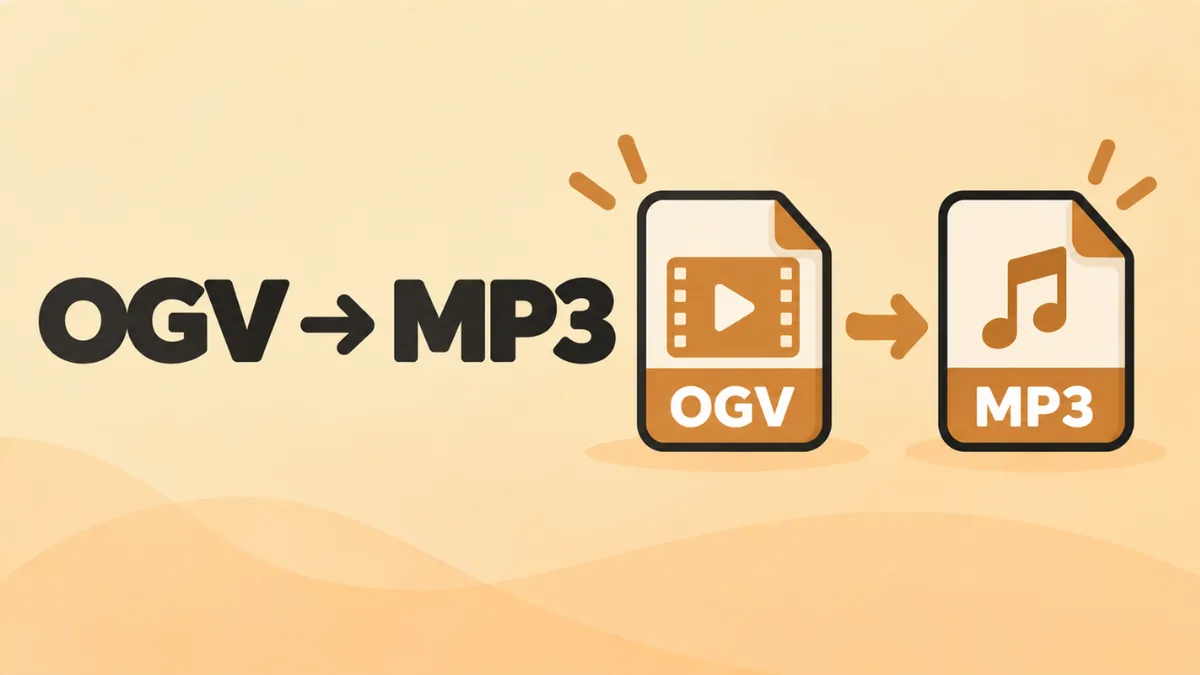
Good news: getting the audio out of an OGV file is easy, and you can save it as MP3. This guide shows you four free ways to do it. They range from a one-click online method to a precise command-line option.
The quick answer
- Open our free online OGG player in Chrome, Edge or Firefox.
- Drop in the .ogv file.
- Click Download MP3.
The player pulls out the audio track and converts it in your browser. Nothing gets uploaded.
What is an OGV file?
An OGV file uses the Ogg container from the Xiph.Org Foundation. Inside, there are usually two streams:
- video, most often encoded with the Theora codec,
- audio, most often encoded with Vorbis, sometimes Opus.
OGV was popular in the early days of HTML5 video, because it was free and open. Today, most sites use MP4 or WebM instead. But you’ll still find OGV files on:
- Wikimedia Commons and Wikipedia,
- old websites and archives,
- open-source projects and older screen recordings.
Why can’t I watch OGV files anymore?
Chrome, Edge and other Chromium browsers removed Theora video support. Safari never had it. So in most browsers today, an OGV file plays its sound but shows no picture.
VLC still plays both video and audio. So does Firefox, at least for now. If you want to watch the video, use one of those. If you only need the sound, keep reading.
Method 1: Online, in your browser (fastest)
This is the simplest method. It works on Windows, Mac, Linux and Chromebook.
- Open Chrome, Edge or Firefox.
- Go to openoggfile.com.
- Drag the .ogv file onto the page, or click Choose file and pick it.
- The player loads the audio track and shows a waveform. You may see a note that the picture can’t be shown. That’s expected.
- Choose an MP3 quality. Use 128 kbps for speech, lectures and interviews. Use 192 kbps or higher for music.
- Click Download MP3. For an uncompressed copy, click Download WAV instead.
Want just part of the audio? Set a Start and End time first. You can type the times or click Set to current while the audio plays. The download then includes only that section.
Your file never leaves your computer. The browser does all the work, which also makes it fast on slow connections.
Method 2: VLC media player
VLC is free and can convert OGV to MP3 on Windows, Mac and Linux. It’s a good choice for several files at once.
On Windows
- Install VLC from videolan.org if you don’t have it.
- Open VLC and click Media > Convert / Save.
- Click Add and choose your .ogv file. You can add several.
- Click Convert / Save.
- Under Profile, pick Audio – MP3.
- Click Browse, choose a folder and type a name ending in .mp3.
- Click Start.
On Mac
- Open VLC and choose File > Convert / Stream.
- Drag in the .ogv file.
- Choose the Audio – MP3 profile.
- Click Save as File, pick a location and click Save.
VLC drops the video and keeps only the sound. For more VLC tips, see how to play OGG files in VLC.
Method 3: FFmpeg (for power users)
FFmpeg is a free command-line tool that handles almost any media format. It’s fast and gives you full control.
After installing FFmpeg, open a terminal in the folder with your file.
Convert OGV to MP3
ffmpeg -i input.ogv -vn -c:a libmp3lame -q:a 2 output.mp3
- -vn means “no video.”
- -c:a libmp3lame uses the MP3 encoder.
- -q:a 2 sets high variable quality, around 170 to 210 kbps.
Keep the original audio without converting
If the OGV file has Vorbis audio, you can copy it out with no quality loss:
ffmpeg -i input.ogv -vn -c:a copy output.ogg
This takes a second, because nothing is re-encoded. The result is an .ogg audio file you can play in any OGG player. If the audio is Opus, name the output output.opus instead.
Convert many files at once (Windows PowerShell)
Get-ChildItem *.ogv | ForEach-Object { ffmpeg -i $_.FullName -vn -c:a libmp3lame -q:a 2 ($_.BaseName + ".mp3") }
Installing FFmpeg
- Windows: download a build from the links on ffmpeg.org, unzip it, and add its bin folder to your PATH. Or install it with winget install ffmpeg if you use the Windows package manager.
- Mac: install Homebrew, then run brew install ffmpeg.
- Linux: run sudo apt install ffmpeg on Ubuntu and Debian, or use your distro’s package manager.
Method 4: Audacity
Audacity is a free audio editor. It’s the best choice if you want to clean up the sound before you save it.
- Install Audacity. For OGV files, you may also need its FFmpeg import/export library. Audacity will point you to it if it’s missing.
- Choose File > Import > Audio and pick the .ogv file. Audacity imports only the sound.
- Edit as needed. You can cut silence, reduce background noise or boost the volume.
- Choose File > Export Audio, pick MP3 and click Export.
This is great for old recordings with hiss, or lectures with long pauses.
Other formats you can make
MP3 is the safe choice for sharing, but it’s not the only one. Depending on what you need, you might pick:
- WAV: uncompressed and perfect for editing. Files are large. The online player has a Download WAV button.
- M4A (AAC): great for Apple devices and Apple Music. VLC and FFmpeg can make it. With FFmpeg, use -c:a aac -b:a 192k output.m4a.
- OGG or Opus: small and high quality. Use FFmpeg’s copy option above to keep the original audio as-is.
- FLAC: lossless, for archiving. It keeps every detail of the original audio track, but it won’t add quality that wasn’t there.
If you’re not sure, pick MP3. It plays almost everywhere.
Which method should you use?
| Method | Best for | Install needed | Trim | Batch |
|---|---|---|---|---|
| Online player | One file, fast | No | Yes | No |
| VLC | A few files | Yes | No | Yes |
| FFmpeg | Many files, no quality loss | Yes | Yes (with options) | Yes |
| Audacity | Cleaning up audio | Yes | Yes | No |
Tips for the best result
- Check the original bitrate. The online player shows it. Don’t pick an MP3 bitrate far above it. It only makes the file bigger.
- Keep the original OGV. Converting is one-way. If you need a different format later, start from the original.
- Use WAV for editing. If you’ll edit the audio in another program, export WAV first, then save the final version as MP3.
- Name your files clearly, like 2025 Lecture – Intro to Physics.mp3, so you can find them later.
Using audio from Wikimedia Commons
Many OGV files come from Wikimedia Commons. Before you reuse the audio:
- Check the licence on the file’s page. Many are public domain or Creative Commons.
- Credit the author if the licence asks for it. Commons provides a ready-made attribution line.
- Some Commons files already offer converted versions. Look for a Download option on the file page.
For more on Wikimedia audio, see our guide to OGA files.
Troubleshooting
The online player says the picture can’t be shown
That’s normal. Your browser doesn’t support Theora video. The audio still loads, and you can download it as MP3.
The file has no sound
Some OGV files have no audio track at all, like silent screen recordings. VLC can confirm this. Go to Tools > Media Information > Codec and check for an audio stream.
VLC makes a file with no extension
Type the full file name, including .mp3, in the save box.
FFmpeg says “Unknown encoder libmp3lame”
Your FFmpeg build doesn’t include the MP3 encoder. Install a full build, or convert to another format first.
The MP3 is out of sync with the video
MP3 files don’t have video, so sync doesn’t apply. If you plan to re-add the audio to a video, use WAV and a video editor instead.
FAQ
How do I convert OGV to MP3 for free?
Open the file in the online OGG player and click Download MP3. VLC, FFmpeg and Audacity are also free.
Can I extract audio from OGV without losing quality?
Yes. Use FFmpeg with -c:a copy to copy the original audio into an .ogg or .opus file.
Why won’t my OGV video show a picture?
Most browsers dropped support for the Theora video codec. Use VLC or Firefox to watch it.
Is OGV the same as OGG?
Both use the Ogg container. OGV holds video and audio. OGG is usually audio only.
Can I convert OGV to MP4 instead?
Yes, if you want to keep the video. Use VLC’s Video – H.264 + MP3 (MP4) profile, or FFmpeg with ffmpeg -i input.ogv -c:v libx264 -c:a aac output.mp4. The online player only extracts audio.
Is it safe to convert OGV files online?
With our player, yes. It works inside your browser, so your file is never uploaded.
Final word
Getting the sound out of an OGV video takes seconds. For one file, use the free online OGG player and click Download MP3. For batches, use VLC or FFmpeg. And if the audio needs cleaning up, run it through Audacity first. Either way, you’ll end up with an MP3 that plays almost anywhere.