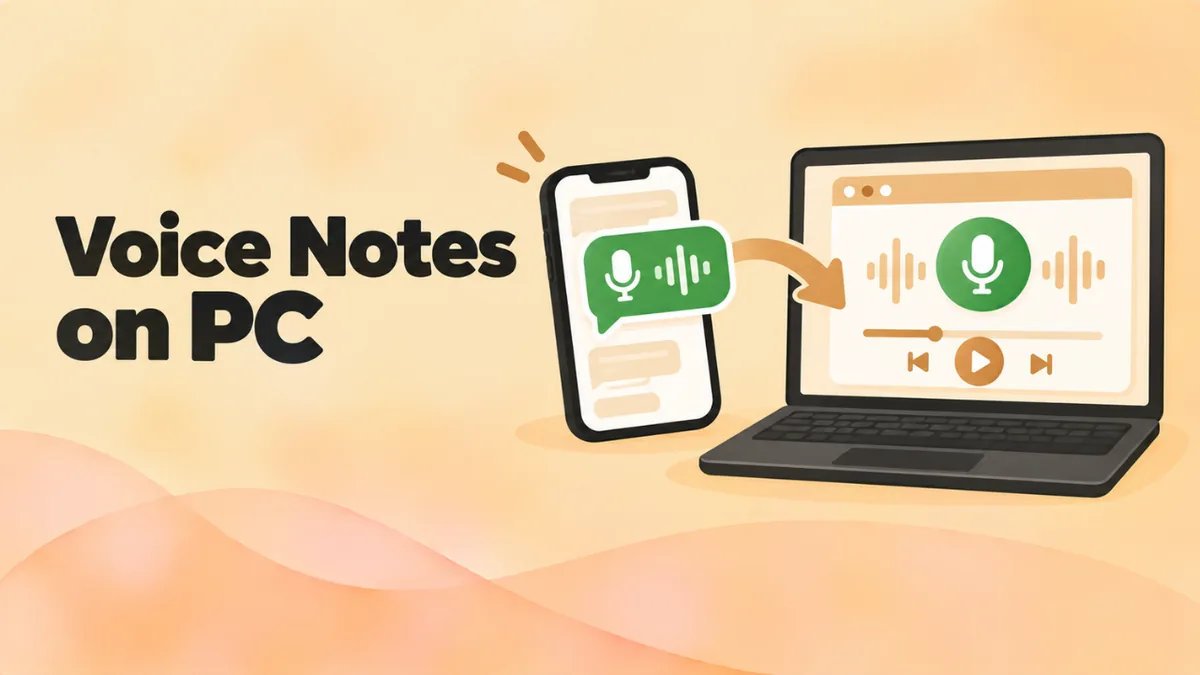
How to Play WhatsApp Voice Notes on a PC (Windows and Mac)
Someone sends you an exported WhatsApp chat. Or you save a voice note to your laptop to keep it. Then you double-click the file and your computer has no idea what to do with it. The file ends in .opus, and Windows or macOS shrugs.
This is one of the most common audio problems out there. The good news: WhatsApp voice notes are easy to play on any PC or Mac once you know how. This guide shows you how to get the file onto your computer and three ways to play it. It also shows how to turn it into an MP3.
The quick answer
- Drag the .opus file into our free online OGG player in Chrome, Edge or Firefox.
- Press play.
- Click Download MP3 if you want a copy that plays anywhere.
Your file isn’t uploaded. The browser plays it straight from your computer, which keeps your private messages private.
What is a WhatsApp .opus file?
WhatsApp records voice notes with the Opus codec. Opus is a free, modern audio codec that sounds clear at very small file sizes. That’s perfect for voice messages over mobile data.
The audio sits inside an Ogg container. So a WhatsApp voice note is really an OGG file with Opus audio. Depending on how you got it, the file may end in .opus or .ogg. Exported voice notes on Android often have names like PTT-20250312-WA0004.opus. “PTT” stands for push-to-talk.
Your computer struggles with these files because:
- Windows Media Player Legacy can’t play Opus at all.
- The Windows Media Player app doesn’t always open .opus files.
- QuickTime Player on Mac doesn’t support Opus.
- Many older music apps don’t recognize the .opus extension.
The fix is simple: use a player that supports Opus.
Step 1: Get the voice note onto your computer
If the file is already on your PC or Mac, skip to Step 2. If it’s still in WhatsApp, here are your options.
Option A: Share one voice note from your phone
This is best for one or two messages.
On Android:
- Open the chat in WhatsApp.
- Long-press the voice note.
- Tap the Share icon.
- Choose Gmail, Drive or another app to send it to yourself.
- Download the file on your computer.
On iPhone:
- Open the chat and long-press the voice note.
- Tap Forward, then the Share icon in the bottom corner.
- Choose Mail, Save to Files or AirDrop (for a Mac).
Option B: Export the whole chat with media
This is best when you want many voice notes at once.
- Open the chat in WhatsApp.
- Android: Tap the three dots, then More > Export chat. iPhone: Tap the contact or group name at the top, scroll down and tap Export Chat.
- Choose Include media (or Attach Media on iPhone).
- Send the export to yourself by email, or save it to a cloud drive.
You’ll get a text file of the chat plus the media files. Every voice note comes along as an .opus file. Large chats can create big exports, so a cloud drive works better than email.
Option C: WhatsApp Web or Desktop
WhatsApp Web and the WhatsApp desktop app play voice notes inside the chat. Depending on your version, the message menu may also show a Download option. If you see it, use it to save the file. If not, use Option A or B.
Option D: Copy from an Android phone with a cable
- Connect your Android phone to your PC with a USB cable.
- On the phone, choose File transfer when asked.
- On your PC, open the phone in File Explorer.
- Go to Android > media > com.whatsapp > WhatsApp > Media > WhatsApp Voice Notes.
- Copy the folders or files you need.
The voice notes sit in numbered folders, one for each week. This path works on newer Android versions. Older phones may keep a WhatsApp folder at the top level of storage instead.
Step 2: Play the voice note
Method 1: Online OGG player (fastest)
- Go to openoggfile.com.
- Drag the .opus file onto the page, or click Choose file.
- Press play.
The player also lets you:
- speed up long messages to 1.5× or 2×,
- slow down fast talkers to 0.75×,
- click the waveform to jump to any moment,
- trim the message to keep only the important part,
- download it as MP3 or WAV.
It works on Windows, Mac, Linux and Chromebook. Nothing to install.
Method 2: VLC media player
If you get voice notes often, install VLC. It’s free and plays every Opus file.
- Download VLC from videolan.org.
- Install it with the default options.
- Right-click the .opus file, choose Open with, and pick VLC.
To make VLC open .opus files every time, see our guide on playing OGG files in VLC.
Method 3: Windows Media Player app (Windows 11)
The new Media Player app sometimes plays Opus files. Right-click the file, choose Open with > Media Player, and try it. Seeing “This item is in a format we don’t support”? Use Method 1 or 2 instead.
Step 3 (optional): Convert the voice note to MP3
MP3 plays on every device, every media player and every messaging app. Convert your voice note if you want to:
- send it to someone on an older iPhone,
- keep it in a safe archive,
- add it to a video or presentation,
- play it in an app that doesn’t support Opus.
How to convert
- Open the voice note in the online OGG player.
- Choose 128 kbps for MP3 quality. That’s plenty for voice.
- Click Download MP3.
The MP3 appears in your Downloads folder. Voice notes are small, so it takes a second or two.
Converting many voice notes
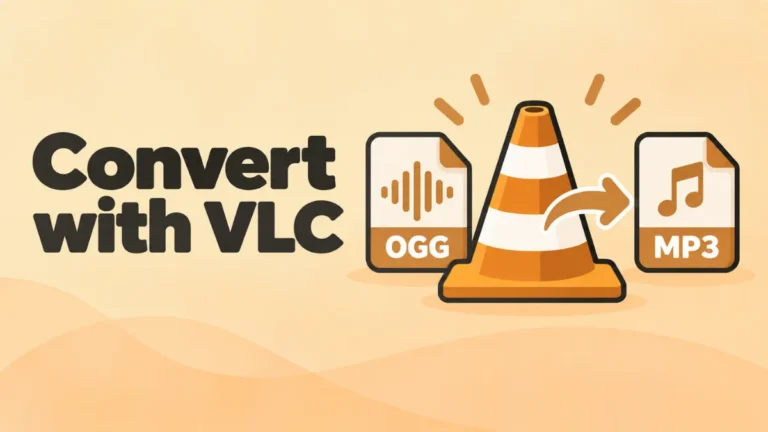
For a whole folder of exported voice notes, VLC can convert them in one go. On Windows, open Media > Convert / Save, add all the files, choose Audio – MP3, and start. On a Mac, use File > Convert / Stream.
How to play WhatsApp voice notes on a Mac
Everything above works on a Mac too. A few Mac-specific tips:
- QuickTime Player can’t open .opus files. Don’t bother trying.
- Safari can play Opus in Ogg on macOS Sequoia 15.4 or later. On older versions, use Chrome or Firefox with the online player.
- IINA is a free, Mac-style player that also plays .opus files.
- AirDrop is the fastest way to move a voice note from an iPhone to a Mac.
For more options, see how to open OGG files on Mac.
Can you read a voice note instead of playing it?
Sometimes you can’t play audio, like in a meeting or on a train. WhatsApp has a built-in voice message transcripts feature in many languages. When it’s available, you can turn it on in Settings > Chats > Voice message transcripts. Then long-press a voice note in the app and tap Transcribe.
This works inside WhatsApp on your phone. For a voice note file on your computer, you’ll need to play it, or use a separate transcription tool.
Keeping voice notes private
Voice notes often hold personal or sensitive information. Before you drop one into a random “free converter,” check how it works. Many online converters upload your file to their servers.
Our online player doesn’t do that. It reads the file inside your browser. You can even disconnect from the internet after the page loads, and it still plays and converts your file.
Troubleshooting
The file won’t play anywhere
The export may be incomplete. Large WhatsApp exports sometimes skip media or cut files short. Export the chat again, or share the single voice note from your phone.
The file has no extension
Sometimes files lose their extension in transfers. Rename the file and add .opus at the end. Then try again.
The voice note plays but is very quiet
Some people record voice notes far from the phone. Turn up your volume. To make it louder for good, raise the level in a free audio editor like Audacity. Then export a new copy.
I only see a .txt file in my export
You chose Without media when you exported. Export again and choose Include media.
Related guides: Save and play Signal voice notes on a computer
FAQ
How do I open a WhatsApp .opus file on Windows?
Drag it into the online OGG player in Chrome or Edge. Or install VLC and open the file with it.
Why won’t Windows Media Player play WhatsApp voice notes?
The older Windows Media Player doesn’t support the Opus codec. The newer Media Player app may play some files but not all. Use VLC or the online player.
Can I convert a WhatsApp voice note to MP3?
Yes. Open it in the online OGG player and click Download MP3. For many files, use VLC’s converter.
Where are WhatsApp voice notes saved on Android?
On newer Android versions: Android > media > com.whatsapp > WhatsApp > Media > WhatsApp Voice Notes.
Is it safe to play WhatsApp voice notes online?
With our player, yes. Your file never leaves your computer.
Final word
WhatsApp voice notes are just OGG files with Opus audio. Your computer only needs the right player. Drop the file into the free online OGG player to hear it in seconds. Or install VLC if you handle voice notes often. And when you want a copy that plays anywhere, convert it to MP3 in one click.