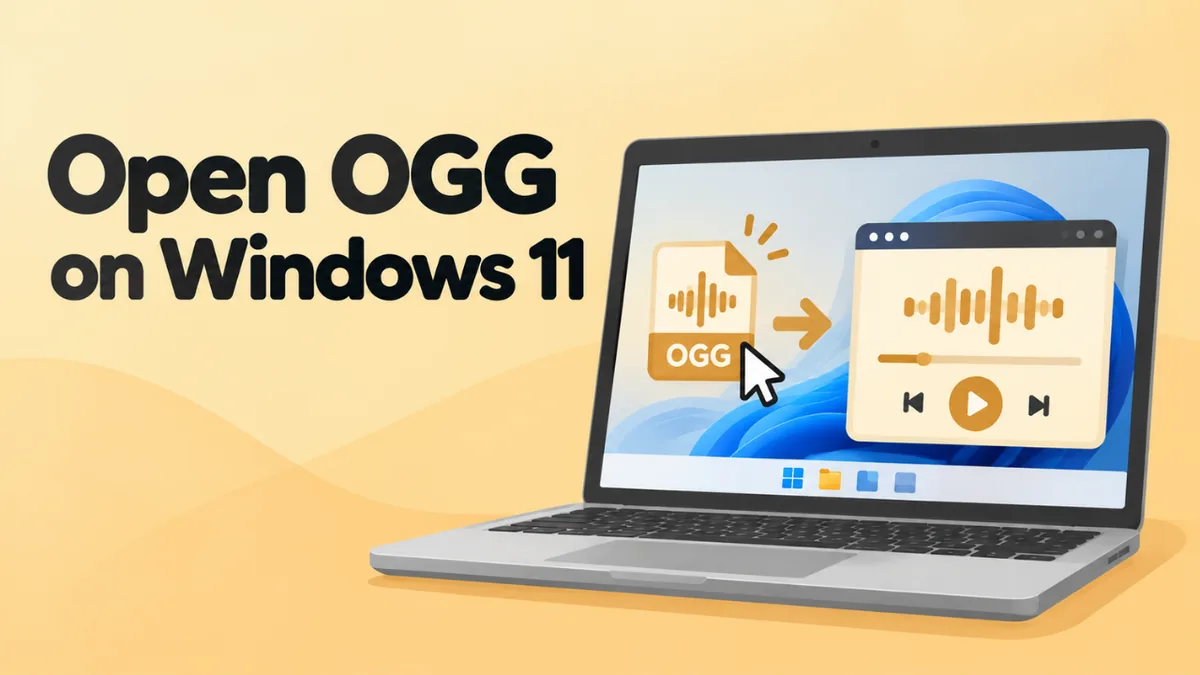
How to Open OGG Files on Windows 11 (4 Easy Ways)
You double-click an OGG file on Windows 11 and get an error. Or Windows asks which app you want to use, and none of them work. It’s annoying, but it’s easy to fix.
This guide shows you four free ways to open OGG files on Windows 11. You’ll also learn how to fix common errors. And you’ll see how to make OGG files open in the right app every time.
The quick answer
The fastest way is to open the file in your browser. Go to our free online OGG player in Edge or Chrome and drop the file in. It plays at once, with no install.
For a desktop app, try the Media Player app that comes with Windows 11. If it won’t play the file, install the free Web Media Extensions from the Microsoft Store. Or install VLC, which plays every kind of OGG file.
What is an OGG file?
OGG is a free, open audio format. It’s made by the Xiph.Org Foundation. Ogg is a container. It holds audio that’s compressed with a codec, usually Vorbis or Opus.
You’ll find OGG files in many places:
- voice messages from WhatsApp (.opus) and Telegram (.ogg),
- sound effects and music from video games,
- audio clips on Wikipedia (.oga),
- recordings from open-source apps like Audacity.
Windows handles MP3 and WAV out of the box. OGG support is less consistent, which is why these files cause trouble.
Method 1: Open OGG files in your browser (no install)
This is the quickest fix. Microsoft Edge and Google Chrome both play OGG audio. You just need a page that can read the file.
- Open Edge or Chrome.
- Go to openoggfile.com.
- Drag your OGG file onto the box, or click Choose file and pick it.
- Press play.
The file doesn’t get uploaded anywhere. Your browser reads it straight from your PC. That makes it safe for private voice notes.
The player also lets you:
- click the waveform to jump to any point,
- change the speed from 0.5× to 2×,
- see the codec, length and bitrate,
- trim the audio and save it as MP3 or WAV.
Use this method to play a file once. It’s also good on a work PC where you can’t install apps.
Method 2: Use the Windows 11 Media Player app
Windows 11 comes with a new app called Media Player. It replaced Groove Music. On many PCs, it plays OGG files out of the box. On others, it needs a free add-on first.
Try opening the file
- Right-click the OGG file.
- Choose Open with.
- Pick Media Player.
If the file plays, you’re done. If you see an error, go to the next step.
Install Web Media Extensions
Microsoft makes a free package called Web Media Extensions. It adds support for the OGG container, the Vorbis audio codec and the Theora video codec.
- Open the Microsoft Store app.
- Search for Web Media Extensions.
- Click Get or Install. If it says Open or Update, it’s already there. Update it if you can.
- Restart Media Player and try the file again.
Many PCs already have this package. If yours does and the file still won’t play, the file may use a codec Media Player doesn’t handle. In that case, use VLC (Method 3).
Method 3: Install VLC Media Player
VLC is a free, open-source player from the VideoLAN project. It has no ads and plays almost every audio and video format. That includes OGG, OGA, OPUS and OGV.
- Go to the official site, videolan.org. Avoid download sites that bundle extra software.
- Download VLC for Windows and run the installer.
- Keep the default options. On the file associations screen, tick the box for audio files.
- Right-click your OGG file, choose Open with and pick VLC media player.
VLC is the best choice if you:
- open OGG files often,
- have OGV video files,
- have files that won’t play anywhere else.
You can also get VLC from the Microsoft Store. The Store version updates itself, which is handy.
Method 4: Convert OGG to MP3
Sometimes you want a file that plays everywhere. Maybe you want to add it to a playlist or send it to an iPhone user. In that case, convert it to MP3.
- Open the file in the online OGG player.
- Scroll to Convert & download.
- Pick a quality. 128 kbps is fine for voice. Use 192 kbps or higher for music.
- Click Download MP3.
The MP3 lands in your Downloads folder. It will play in any app on any device.
Converting can’t add quality that wasn’t there. But at 192 kbps, most people can’t hear a difference from the original.
Make OGG files always open in the same app
Once you find a player you like, set it as the default. Then OGG files open with a double-click.
The quick way
- Right-click an OGG file.
- Choose Open with, then Choose another app.
- Pick your player, such as VLC or Media Player.
- Click Always.
Through Settings
- Open Settings with Windows + I.
- Go to Apps, then Default apps.
- In the box at the top, type .ogg and press Enter.
- Click the app shown under .ogg and choose your player.
Repeat the steps for .oga and .opus if you use those files too.
How to see the file extension
Windows hides file extensions by default. So you might not know if a file is an OGG file. Here’s how to show extensions:
- Open File Explorer.
- Click View in the top menu.
- Go to Show and tick File name extensions.
Now you’ll see names like voice-note.ogg or track.opus. This helps you spot files that someone renamed by mistake.
Other free OGG players for Windows 11
VLC is the most popular choice, but it’s not the only one. These free players also handle OGG well:
| Player | Best for | Notes |
|---|---|---|
| VLC media player | Everything | Plays audio and video, no ads |
| foobar2000 | Music libraries | Light and fast, great for large collections |
| AIMP | Music | Clean look, built-in converter |
| MPC-HC | Video | Simple, light player for OGV and other video |
| Online OGG player | Quick playback | No install, trim and convert to MP3 |
Pick one and stick with it. You don’t need more than one.
Opening WhatsApp and Telegram voice notes on Windows 11
Voice notes are the most common OGG files on a PC. WhatsApp saves them as .opus files. Telegram saves them as .ogg files. Both use the Opus codec.
To play one:
- Save the voice note to your PC. In WhatsApp Desktop or Telegram Desktop, right-click the message and choose Save as or Download.
- Drag the file into the online player, or open it with VLC.
- Speed it up to 1.5× if it’s a long message.
- Click Download MP3 if you want to keep a copy that plays anywhere.
What about OGV video files?
OGV files are videos in the Ogg format. Most use the Theora video codec.
Chrome and Edge no longer support Theora video. In those browsers you’ll hear the sound but see no picture. To watch an OGV file on Windows 11, you have two options:
- VLC: plays the video and sound with no extras.
- Media Player + Web Media Extensions: the extension adds Theora support.
If you only need the audio, the online player can pull it out and save it as MP3.
Fixing common errors
“This item is in a format we don’t support”
Media Player shows this error, often with the code 0xc00d36c4. It means Windows doesn’t have the right codec for the file. Install or update Web Media Extensions. If that doesn’t help, use VLC.
“How do you want to open this file?”
Windows doesn’t know which app should open OGG files. Pick VLC or Media Player from the list and tick Always use this app.
The file opens but there’s no sound
Check the volume in the app and in Windows. Click the speaker icon in the taskbar. Check that it uses the right output, such as speakers or headphones.
The file won’t play in any app
The file might be broken. This happens when a download stops early or a transfer fails. Get a fresh copy from the original source.
It might also not be an OGG file at all. Someone may have renamed an MP3 or M4A file to .ogg. The online player checks the file header and tells you if it isn’t a real Ogg file.
Related guides: Best free OGG players for Windows 10 · Make Windows Media Player play OGG
FAQ
Can Windows 11 play OGG files without extra software?
Often, yes. The Media Player app plays many OGG files. If it doesn’t on your PC, install the free Web Media Extensions from the Microsoft Store. Your browser can also play OGG files with no install.
What is the best OGG player for Windows 11?
VLC media player. It’s free, has no ads, and plays every OGG variant, including OGV video.
Why won’t Windows Media Player play OGG files?
It’s missing the right codec. Install Web Media Extensions from the Microsoft Store and try again. If it still fails, use VLC.
How do I convert OGG to MP3 on Windows 11?
Open the file in the online OGG player and click Download MP3. You can also use VLC’s Convert/Save option or a free audio editor like Audacity.
Is it safe to open OGG files?
Yes. OGG is a normal audio format. As with any file, only open files from sources you trust. The online player doesn’t upload your file, so it stays on your PC.
Final word
Opening OGG files on Windows 11 takes less than a minute. For a quick listen, use the free online OGG player in Edge or Chrome. For a desktop app, try Media Player with Web Media Extensions, or install VLC. And if you need a file that plays everywhere, convert it to MP3.