How to Convert OGG to MP3 in Audacity (Step by Step)
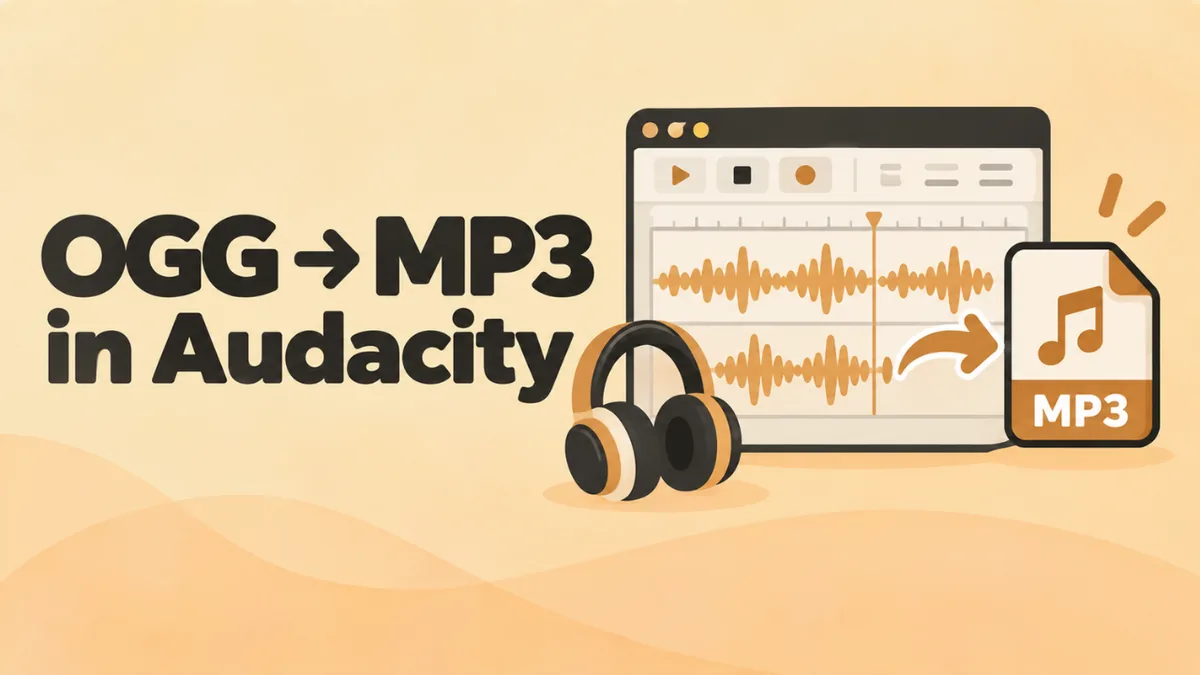
Audacity is a free, open-source audio editor for Windows, Mac and Linux. It opens OGG files, lets you edit them, and exports MP3 with full control over quality. It can even convert a whole folder at once.
This guide shows you how to convert OGG to MP3 in Audacity and which export settings to pick. It also covers batch conversion with Macros and fixes for common problems.
The quick answer
- Open Audacity and choose File > Open. Pick your OGG file.
- Choose File > Export Audio.
- Set Format to MP3 Files.
- Pick the quality, choose a folder and click Export.
That’s it. For one file with no editing, our free online OGG to MP3 converter is even quicker. But Audacity shines when you want to edit first or convert in bulk.
Why use Audacity to convert OGG?
- It’s free and open source. No ads, no watermarks, no account.
- You can edit before converting. Trim, fade, remove noise, fix volume.
- You control every setting. Bitrate, mode, sample rate and channels.
- It batch converts using Macros.
- It edits tags, like title and artist, during export.
Step 1: Install Audacity
- Go to audacityteam.org and download Audacity for your system.
- Install it with the default options.
Recent versions of Audacity include everything needed to open OGG Vorbis files and export MP3. You don’t need to install LAME separately anymore. That was only needed in very old versions.
Opus files: recent versions can also open and export Opus. If yours can’t open an .opus file, update Audacity.
Step 2: Open your OGG file
You have three ways:
- File > Open, then pick the OGG file.
- Drag and drop the file onto the Audacity window.
- File > Import > Audio to add it to an existing project.
The waveform appears. Press Space to play and check it.
Step 3 (optional): Edit the audio
This is where Audacity beats a simple converter. A few useful edits:
Trim the start and end
- Click and drag across the part you want to remove.
- Press Delete.
Fade in or out
- Select the first or last few seconds.
- Choose Effect > Fading > Fade In or Fade Out.
Make it louder or even out volume
- Effect > Volume and Compression > Normalize raises the peak level.
- Effect > Volume and Compression > Loudness Normalization makes the overall loudness consistent. It’s great for podcasts and voice notes.
Reduce background noise
- Select a short part with only background noise.
- Choose Effect > Noise Removal and Repair > Noise Reduction and click Get Noise Profile.
- Select the whole track (Ctrl + A or Cmd + A).
- Open Noise Reduction again and click OK.
Menu names can shift a little between Audacity versions, but these effects have been around for years.
Remove long silences
Voice notes and lectures often have long pauses. Effect > Special > Truncate Silence shortens them automatically. Set how long a pause must be before Audacity trims it, then click Apply.
Speed up or slow down speech
Choose Effect > Pitch and Tempo > Change Tempo. It changes speed without making voices sound like chipmunks. A 20 to 30% increase works well for long voice notes.
Step 4: Export as MP3
- Choose File > Export Audio.
- Set Format to MP3 Files.
- Choose the Folder and File Name.
- Pick the Bit Rate Mode and Quality (see below).
- Set Channels. Keep Mono for mono voice recordings, Stereo for music.
- Click Export.
A metadata window may appear. Fill in the title, artist and album if you like, then click OK.
Which MP3 settings should you use?
| Setting | Recommended | Notes |
|---|---|---|
| Bit Rate Mode | Variable or Preset | Good quality for the file size |
| Quality (Variable) | Standard or High | Standard suits most music, High for critical listening |
| Bit Rate Mode | Constant | Use when a device or site needs a fixed bitrate |
| Constant bitrate | 128 kbps (voice), 192 to 320 kbps (music) | Higher is bigger |
| Sample rate | Keep the project rate | Usually 44.1 or 48 kHz |
Don’t choose a bitrate far above the original OGG. It won’t sound better.
Split one long OGG into several MP3s
Got a long recording, like a lecture or a full album in one file? Split it into separate MP3s with labels.
- Click where the first part ends and press Ctrl + B (or Cmd + B on Mac) to add a label. Type a name, like Part 1.
- Add a label at the start of each new section.
- Choose File > Export Audio.
- Select the option to export multiple files, split by labels.
- Choose MP3 and a folder, then click Export.
Audacity creates one MP3 per section, named after your labels. Older versions put this under File > Export > Export Multiple.
How to batch convert OGG to MP3 in Audacity
Audacity’s Macros feature can convert a whole folder of OGG files in one go. There’s a built-in macro for this.
- Open Audacity with no project loaded.
- Choose Tools > Macro Manager (or Tools > Macros in some versions).
- Select the MP3 Conversion macro.
- Click Files under Apply Macro to.
- Select all the OGG files you want to convert and click Open.
Audacity opens and converts each file. The MP3s go into a folder called macro-output, next to the original files.
Make your own macro
Want to normalize every file before converting? Edit the macro:
- In the Macro Manager, click New and name it.
- Click Insert and add Loudness Normalization.
- Add Export as MP3.
- Click OK and apply it to your files as above.
Save the project or just export?
Audacity has two ways to save:
- File > Save Project creates an .aup3 file. Only Audacity can open it. Use it if you want to come back and keep editing.
- File > Export Audio creates a normal audio file, like MP3, that plays anywhere.
If you only want the MP3, you can skip saving the project. Audacity will ask when you close. Click No if you don’t need it.
Convert OGG to other formats in Audacity
The same Export Audio window supports other formats:
- WAV: uncompressed, for further editing or burning CDs. See how to convert OGG to WAV.
- FLAC: lossless and smaller than WAV.
- M4A (AAC): great for Apple devices. This may need the FFmpeg library, which Audacity can guide you to install.
- Ogg Vorbis and Opus: handy for games and websites.
Editing tags before export
OGG files often carry tags. Audacity shows them in the metadata window during export. You can:
- fix typos in the title or artist,
- add the album and track number,
- save a template so every export uses the same album or artist.
Good tags help your MP3s show up properly in music apps and car stereos.
Handy Audacity shortcuts
These keys speed up the whole job. On a Mac, use Cmd instead of Ctrl.
| Action | Shortcut |
|---|---|
| Play or stop | Space |
| Select all | Ctrl + A |
| Undo | Ctrl + Z |
| Add a label | Ctrl + B |
| Jump to start or end | Home or End |
| Export audio | Ctrl + Shift + E |
Common Audacity problems and fixes
“Audacity did not recognize the type of this file”
The file might not be a real OGG file, or it may be damaged. Play it in VLC to check. If it’s an Opus file and your Audacity is old, update Audacity.
MP3 isn’t listed as an export format
You’re probably on a very old version. Install the latest Audacity from audacityteam.org.
The exported MP3 is too quiet
Use Loudness Normalization before exporting. Target around -16 LUFS for voice content you’ll listen to on a phone.
The MP3 sounds different from the OGG
Check you didn’t apply an effect by mistake. Also check the sample rate at the bottom left of the window. If it differs from the original, set it back before exporting.
Batch output went missing
Look for a folder called macro-output in the same folder as your original files.
Audacity vs other ways to convert OGG
| Tool | Best for | Edits | Batch | Install |
|---|---|---|---|---|
| Audacity | Editing and controlled exports | Yes | Yes (Macros) | Yes |
| Online converter | One quick file, private | Trim only | No | No |
| VLC | Simple conversions | No | Yes | Yes |
| FFmpeg | Power users and scripts | Via commands | Yes | Yes |
For a full rundown of every method, see how to convert OGG to MP3.
FAQ
Can Audacity open OGG files?
Yes. Audacity opens Ogg Vorbis files, and recent versions also open Opus.
Is Audacity free?
Yes. It’s free and open source, with no ads.
Do I need LAME to export MP3 in Audacity?
Not in recent versions. MP3 export is built in.
How do I convert many OGG files at once?
Use Tools > Macro Manager and apply the MP3 Conversion macro to your files.
Can Audacity convert MP3 back to OGG?
Yes. Open the MP3 and export as Ogg Vorbis. It won’t restore quality the MP3 lost, but it’s handy for games and websites that prefer OGG.
What’s the best MP3 setting in Audacity?
Variable bitrate at Standard quality works for most music. For voice, a constant 128 kbps is plenty.
Final word
Audacity is the best free tool when you want to clean up an OGG file first. Open the file, make your edits, and export with the settings above. For big folders, the MP3 Conversion macro does the work for you. And for quick one-off jobs, the free online converter is faster still.